Latest Updates

How to use Snap on BlackBerry 10 to install Android APK files

How to use Snap on BlackBerry 10 to install Android APK files

Snap
Now that BlackBerry 10.2.1 has arrived for most folks, the ability to install Android APK files with no need for file conversion is going to be one of the biggest highlights. It opens the doors to a lot of apps that otherwise might not be available thanks to the included Android runtime on BlackBerry 10. With that though comes the problem of where to get APK files. 
There's really a lot of way to go about it but to make things a bit easier on folks, the native BlackBerry 10 application Snap was created. Snap is essentially a front end for the Google Play Store so you know APK files downloaded from there are safe and secure as they can be. The apps have passed Google Play's approval process and through the use of Snap, it's no different really than downloading from the Google Play Store directly.
The only problem with Snap is that it is a bit of an advanced method in the fact that the app itself, being a native BlackBerry 10 app, needs to be sideloaded. The great thing about it though is that once it's set up there's no real need to set up anything else because as long as Snap is maintained by the developer, there is very little work you as a end-user of the app need to do in order to keep on installing APK files onto your BlackBerry 10.2.1 device.
If you're looking to sideload Snap in order to gain the ability to download Android APK files directly onto your BlackBerry smartphone, we've put together a guide for you that not only shows you how to sideload the Snap app itself but also how to install APK files directly onto your BlackBerry 10 smartphone using the app.

Sideloading Snap

Snap Dev Mode
  • Download and install Google Chrome.
  • Once Google Chrome is installed, open it up and install this extension for Google Chrome on your computer.
  • Download the latest Snap .BAR file to your computer, place it somewhere you'll remember.
  • Enable development mode on your BlackBerry - Go to Settings>Security and Privacy>Development Mode. Turn the switch to the ON position. Note the IP address it lists as well, it's most commonly set to 169.254.0.1 but if different, make note of it. Also, it may ask you to create a password. If so, make one and do not forget it.
  • Grab your micro-USB cable and plug it into your device, then plug your device into your computer.
  • Open Google Chrome and visit https://169.254.0.1/. If your IP found in development was different, replace 169.254.0.1 with the IP found there.
  • If you get an SSL error page or it says this sites security certificate is not trusted, that's fine. It's not causing any harm. Just accept and proceed. If you get a different sort of error though, like this page cannot be found or this webpage is not available, try reconnecting your device or try a different USB port.
  • Also, you may need to go to the Google Chrome extension settings and enter the correct IP address there. Generally, it auto detects it but if not you'll need to add it manually. Additionally, if you're still unable to connect, make sure your anti-virus is disabled or the app is allowed to run. This often times causes a lot of connection issues especially for Windows users.
  • Once you have the page loaded up, enter in your device password that you created to approve access. You will then see a list of what's already installed on your device.
  • From there, you can go to the top right hand corner where it says 'Install Apps' and click on that. That will open a file explorer window for your computer, in which case you want to browse to wherever it is that you downloaded the Snap BAR file and select it.
  • Once selected, the Snap file will begin installing and you can view the progress in Chrome. When done, you will see 'result::success' indicating that all went well and the file sideloaded properly.
  • You can now disconnect your device from your computer and we'll look at setting up Snap.
Note that this process is applicable for any app that you wish to sideload, not just Snap. If there is other BAR files you wish to install, it can be done the exact same way.

That's all too hard?

If this all a bit too complicated for you, you can make life easier and download Sachesi for your respective computer. Once downloaded, plug in your device, run the Sachesi app and go to the "Install" tab. From there, drag the Snap bar into Sachesi and it will load it. I will note though, DO NOT go messing with anything else in the Sachesi app if you're not aware of what it does.

Setting Up Snap

Snap Sign In
With Snap now properly sideloaded, the rest is really easy. Once you open up the app, it will ask you for your Google login because again, it's basically acting as a front end for the Google Play Store. That of course, implies you must have a Google account of some type, so if you don't have one of those you'll need to sign up for something Google but I'm sure most of you already have that.
In any case, I'm not going to tell you what to do here. If you're not comfortable with handing over such info, you can swipe from the top in the app to view the privacy policy put forth by the developer of Snap. If it meets your standards, you can proceed, if not quit the app and never look back.
I'm going to assume you want to proceed for the rest of this and rather than writing out the steps for downloading and installing apps using Snap, you can go ahead and click play on the video for a bit of a walkthrough on how it's all done and what to expect when installing apps.

The Easy Way to Set Up an Xbox 360 Controller in Ubuntu

The Easy Way to Set Up an Xbox 360 Controller in Ubuntu
controller
Since the arrival of Steam on Linux we often hear from gamers on the hunt for easier ways to get more control over their Xbox controllers in Ubuntu. 
Ubuntu 14.04 LTS includes the robust xpad kernel driver available by default. For the most part this works well enough out of the box, though users of newer wireless controllers have reported issues with incorrect button mapping and random flashing LED issues.
For more control over gamepad performance, configuration, sensitivity, button mapping and so on, an alternative gamepad driver called ‘xboxdrv‘ is often recommended.
Xboxdrv is considered a superior solution thanks to its wide breadth of device support and the vast amount of configuration options if offers, such as:
  • Simulate keyboard and mouse events
  • Remapping buttons
  • Adjust/configure axes
  • Trigger macros
  • Set the LED status on gamepad

Integrated Ubuntu Xbox Driver

We’ve written about setting xboxdrv up in the past and suffice to say: it’s not the easiest tool to get up and running out of the box. From annoying issues with driver conflicts to outright confusing issues like offering no Unity Control Panel entry for adjusting settings.
Enter reader Rael GC and his repackage of the driver that solves many of these issues (and plenty more!). His modified xboxdrv package — which he’s dubbed ‘Ubuntu xboxdrv‘ — is available for Ubuntu 12.04 LTS, 13.10 and 14.04 LTS through a dedicated PPA, making installing (and uninstalling) really simple.
To get started with it just open a new Terminal window and enter the following commands:
sudo apt-add-repository ppa:rael-gc/ubuntu-xboxdrv
sudo apt-get update && sudo apt-get install ubuntu-xboxdrv
After installation completes you may want to reboot your computer to ensure that the new driver takes precedence over the default one. Then, you should be good to go. You can adjust specific settings via the Joystick pane in the Software Centre. 

For further details or to report issues refer to the GitHub page for the project.

Easily Change Color of Folder Icons in Ubuntu With This Tool

Ubuntu’s default folder icons are nice enough but their uniform orange appearance lacks personality.

To add a splash of vibrance we can use a small tool called ‘Folder Color’. It’s designed to work with Nautilus and can only be used with the default Ubuntu icon theme.
The name pretty much spells out its function: it lets you to change the colour of folders. With it you can make your essay documents folder red, your holiday photo directory yellow, and so on, with a simple right-click.

There’s really not an awful lot more to say about it. It’s not a separate icon theme and does not, yet, allow you to change the colour of the standard Home folder icons (Music, Photos, Documents, etc.).
Other than that it works as intended, has a fairly decent number of colour options available, and offers a handy link should you wish to ‘Restore to default’.

Installing Folder Color

While not a game-changing app Folder Color is nevertheless a useful tool to have if you ever fancy retooling your home folder to look like a rainbow.
The utility can be installed from a dedicated PPA using the command line and supports Ubuntu 13.10 and 14.04 LTS.
sudo add-apt-repository ppa:costales/folder-color
sudo apt-get update && sudo apt-get install folder-color
After installation has completed you will need to log out and back (or restart Nautilus) before the right-click options are listed.

How to Install Android Apps on Ubuntu using ARChon

How to Install Android Apps on Ubuntu using ARChon
Google recently announced the first set of Android apps available to run natively on Chrome OS, a feat made possible using a new ‘Android Runtime’ extension.
Now, a developer has figured out a way to bring Android Apps to Chrome on the desktop.
Vlad Filippov‘s chromeos-apk script and ARChon Android Runtime extension work hand-in-hand to bring Android apps to Chrome on the Windows, Mac and Linux desktop.
android apps on linux
IMDB, Flipboard and Twitter Android Apps running on Ubuntu 14.04 LTS
Performance of apps through the runtime is not fantastic. Any ambitions of running Dead Trigger 2 or other graphically intensive games should be put to one side.
Similarly, being both an unofficial repackaging of the official runtime and running outside of Chrome OS, system integration (e.g., webcam, speakers, etc.) may be patchy or non-existent.
The guide that follows is provided as-is, and without any guarantees of success. It should be considered highly experimental, buggy, unstable – possibly even flat out evil. Try it out of curiosity rather than heightened expectation and you should be fine.

How to Run Android Apps on Linux

To run Android apps on Linux through Chrome you will need, obviously, to install Chrome. Version 37 or higher is required. Honestly, if you’re going to be playing with a potentially unstable hack then you might as well download and install the unstable version of Google Chrome for Linux, too.
Already got a version of Chrome installed? You can install the Dev Channel version via the command line by running:
sudo apt-get install google-chrome-unstable
Next you need to download the custom-made — ergo officially not endorsed by Google or Chromium — Android Runtime created by Vlad Filippov. This differs from the official version in a number of ways, the chief being it can be used on desktop versions of the browser.
Once the runtime has fully downloaded you will need to extract the contents from the .zip files and move the resulting directory to ~/Home. 
Now to install ARChon. Open Google Chrome and click the hamburger menu. Navigate through to the Tools > Extensions page and, near the top, check ‘Enable developer mode’.
Finally, click on the ‘load unpacked extension’ button and select the folder you previously placed into ~/Home. 
chromeos-apk-extensions
The Runtime alone doesn’t do much by itself so you will need to create a compatible package from an Android app.
There are several ways to do this: either manually, on your desktop, or using a free Android app. We’re covering the manual method below, but OMG! Chrome! has a great walkthrough of using a desktop app called ‘Twerk’, and the Archon Packager tool for mobile.

The Manual Way (Not Recommended)

To convert APKs manually — something you really don’t need to do any more if you use one of the apps mentioned above — you will need to install the ‘chromeos-apk’ command line JavaScript utility. This is available to install through the Node Packaged Modules (npm) manager.
To do this first run:
sudo apt-get install npm nodejs nodejs-legacy
Ubuntu 64 user? You’ll want to grab the following library, too:
sudo apt-get install lib32stdc++6
Now run the command to install the script itself:
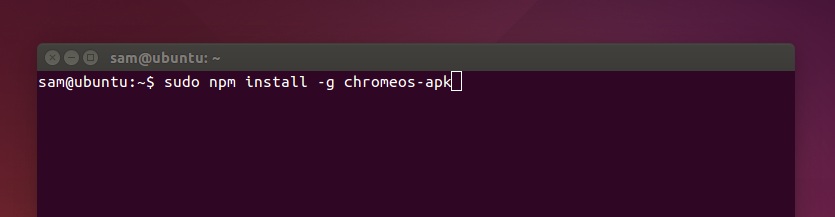
npm install -g chromeos-apk
Depending on your configuration you may need to need to run this latter command as sudo. If you’d prefer not to install npm modules with sudo, you can do so with some jiggery-pokery.
chromeos-apk-npm
Now you’re in the home straight. Head over to Google to find an APK of an app you want to try out, bearing in mind not all Android apps will work, and those that do may be unstable or lack features.
Place your wanted Android APK in ~/Home, then return to Terminal to convert it using the following command, replacing the APK name with the one you want:
chromeos-apk replaceme.apk --archon
The command will take a few seconds to do its thing. Maybe have a blink. Actually, don’t blink. 
chromeos-apk-archon
You now have an ARChon-rocking Chrome APK extension-y folder-y thing waiting in your Home folder. All that’s left to do is install it to see if it works!
Head back into the chrome://extensions page, tap the ‘load unpacked extension’ button once again but this time select the folder the script above created.
The app should proceed to install without issue, but will it run without issue? Open the Chrome App Launcher or Apps Page and launch it to find out.

Going Further

Since the ARChon runtime supports an unlimited number of Chromified APKs you can repeat the process as many times as you like. The Chrome APK subreddit is keeping track of success/failures, so if you’re feeling helpful be sure to post your findings there.
And, shameless plug: you can subscribe to and/or follow OMG! Chrome! on Twitter, Google+ or Facebook to stay up-to-date with all the latest Chrome, Chromecast and Chrome OS happenings.

How To Install MATE Desktop on Ubuntu 14.04 LTS

How To Install MATE Desktop on Ubuntu 14.04 LTS
With the badge of officialdom now hovering over its lapel interest is growing in Ubuntu MATE Remix and the benefits it offers.
But with no stable release yet available for the curious to trial, trying it out for size has been a little difficult. Until now, that is.
The Ubuntu MATE Remix team recently made it deliciously easy for anyone running Ubuntu 14.04 LTS to install the latest MATE 1.8.1 desktop.
All of the requisite packages have been side ported from Debian, popped into a PPA, and sprinkled with custom artwork, some fine-tuning and paired with a few extra apps.
Want to try it? Here’s how.

Caveats and caution

First up: if you use Ubuntu 14.04 LTS in any sort of situation requiring a rock solid and stable experience — say, controlling the air conditioning of a cat sanctuary or running a sisal toy company — then close this tab and stick with what you’ve got.
Secondly, installing the MATE 1.8.1 desktop on Ubuntu will pull in a bit more than just the basics. It features a few extra third-party applications, including Pidgin and HexChat, plus forked versions of Nautilus, image viewer, text editor, etc. If you plan on using it alongside Unity, KDE or Cinnamon then prepare for this “muddying” of your Dash/app menu.
The MATE desktop also uses its own network applet (so if you see two in the system tray, this is why), plymouth and desktop themes; doesn’t use the standard ‘indicator applets’ for messaging, volume, etc.; and, naturally, there’s no global menu applet support, either.

Installing MATE in Ubuntu 14.04 LTS

To install MATE 1.8.1 in Ubuntu open a new Terminal window and bash (get it?) in the following commands:
sudo apt-add-repository ppa:ubuntu-mate-dev/ppa
sudo apt-add-repository ppa:ubuntu-mate-dev/trusty-mate
sudo apt-get update && sudo apt-get upgrade
sudo apt-get install --no-install-recommends ubuntu-mate-core ubuntu-mate-desktop
After installation has completed log out.
From the Unity Greeter click on the ‘Ubuntu’ logo to the side of your username. Select the ‘MATE Session’ from the list that appears. Then, after reentering your password to login, sit back and prepare to get antiquated (as opposed to acquainted) with your old-school desktop.

How to Remove Music Players from Ubuntu Sound Menu

How to Remove Music Players from Ubuntu Sound Menu
Since its introduction back in 2010, the Ubuntu Sound Menu has proven to be one of the most popular and unique features of the Unity desktop.
Allowing music players to integrate with the volume applet – i.e., where one would expect to find sound-related tomfoolery – through a standard interface is inspired. One wonders why other operating systems haven’t followed suit!

Overstuffed

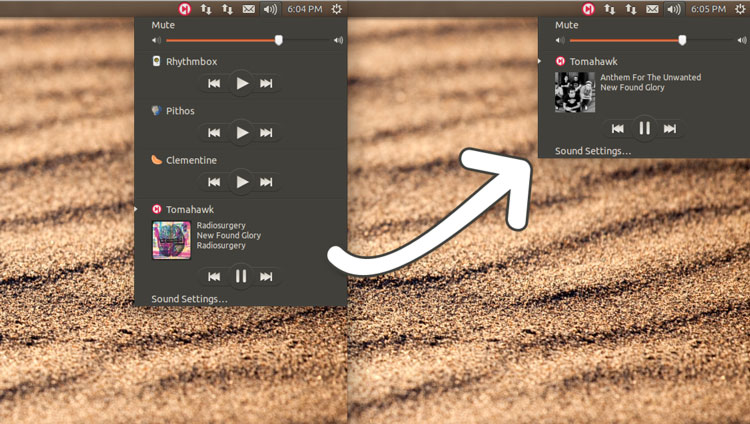
Handy though it may be there is a “problem” with the applet as it currently exists: pretty much anything that so much as looks at an MP3 can, should it want, lodge itself inside. While useful, an omnipresent listing for apps you have installed but don’t use that often is annoying and unsightly.
I’m going to wager that the screenshot above looks familiar to a great many of you reading this! Never fear, dconf-editor is here.

Remove Players from Ubuntu Sound Menu

Part One: Basics

The quickest and easiest way to remove entries from the Sound Menu is to uninstall the apps afflicting it. But that’s extreme; as I said, you may want the app, just not the integration.
To remove players without ditching the apps we need to use a scary looking tool called dconf-editor.
You may have it installed already, but if you don’t you’ll find it in the Ubuntu Software Center waiting.
Once installed, head to the Unity Dash to open it. Don’t panic when it opens; you’ve not been shunted back to the 2002, it’s supposed to look like that.
Using the left-hand sidebar you need to navigate to com > canonical > indicator > sound. The following pane will appear.

dconf-editor
Double click on the closed brackets next to interested-media-players and delete the players you wish to remove from the Sound Menu, but leave in the square brackets and don’t delete any commas or apostrophes from items you wish to keep.
For example, I removed ‘rhythmbox.desktop’, ‘pithos.desktop’, ‘clementine.desktop’, to leave a line that reads:
['tomahawk.desktop']
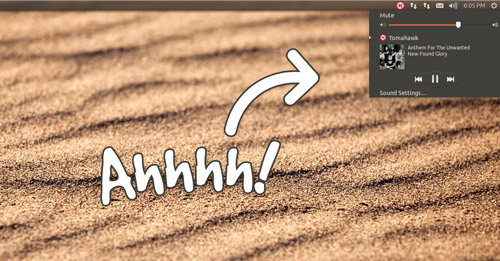
Now, when I open the Sound menu I only see Tomahawk:
music-players-2

Part Two: Blacklisting

Wait! Don’t close dconf-editor yet. While the steps above makes things look nice and tidy some players will instantly re-add themselves to the sound menu when opened. To avoid having to repeat the process add them to the blacklisted-media-player section.
Remember to enclose each player in apostrophes with a comma separating multiple entries. They must also be inside the square brackets — so double check before exiting.
The net result:
from-to-

How to Install Lightweight Budgie Desktop in Ubuntu 14.04

How to Install Lightweight Budgie Desktop in Ubuntu 14.04
If you follow us over on Twitter you may have caught a glimpse of a screenshot we shared recently, along with the invitation to name the desktop environment pictured. 
Did you guess correctly? The answer is Budgie — a simple desktop designed for, but not exclusive to, an openSUSE-based Linux distribution called Evolve OS.
Budgie Desktop on Ubuntu 14.04
We first wrote about Budgie back in March and were suitably bowled over by both the clean, minimal aesthetic and nimble framework, but also by the decision to reuse common components and the standard stack of GNOME 3.10 technologies readily available in most modern distributions.
I’m a huge admirer of the development choices taken by the project lead, Ikey Doherty. There’s no denying that forking has its merits, but by deciding to favour upstream projects whole project is able to move faster, both development-wise (less technical debt) and in being available for users (easier to run on other distributions).
Politics of choice aside, the desktop is clean and minimal with a nod to the Ash desktop of Google’s Chrome OS. If you don’t mind a few rough edges, its well worth a play with. But how do you install Budgie on Ubuntu?

Official PPA is Now Official

Open source being what it is means if you have a bit of terminal know-how you can grab the source and get it up and running with a bit of wily compiling.
But if you’re too lazy for that and happen to be running Ubuntu 14.04 LTS (or a distro based on it) you can get it the easy way.
Just add the official PPA, refresh your Software Sources and then install. A few minutes later and you’ll have both a new uncle in the family by the name of Bob and a new desktop shell to play with.

Add the Budgie PPA

With a terminal window open copy and paste the following commands carefully, entering your password when/if prompted:
sudo add-apt-repository ppa:evolve-os/ppa
sudo apt-get update && sudo apt-get install budgie-desktop

Log into the Budgie Session

After installation you’ll be able to select ‘Budgie’ from the session selector of the Unity Greeter. (Don’t forget to change this back to a stable DE at a later date.)

Notes

Budgie is not stable, finished nor is it officially supported on Ubuntu. It is in active development and features remain missing, including, but not limited to: no network management support, no volume control applet (keyboard keys will work fine), no notification system and no way to ‘pin’ apps to the task bar.
It also doesn’t play too nicely with Ubuntu’s overlay scrollbars, some GTK themes, and session management (e.g., logout, restart, etc.) on distributions using Upstart (like Ubuntu, though that’s changing) does not work.
As a workaround you can disable overlay scrollbars, set a different default theme and quit a session from the terminal using the following command:
gnome-session-quit
With all of those caveats in mind, I’d suggest those whose sanity hinges on a stable, dependable system avoid using it for now.
But for the rest of you crazy folks? Well, let us know what you think of it in the comments below. I’m off to let Bob in.

How to Install Cinnamon from a PPA on Ubuntu 14.04

How to Install Cinnamon from a PPA on Ubuntu 14.04
Linux Mint 17 with Cinnamon

Last month saw consternation for fans of the ‘Cinnamon’ desktop, as the pseudo-official PPA providing stable builds on Ubuntu was unexpectedly retired.
But if the Linux community teaches us anything it’s that popularity begets alternatives. A new Cinnamon desktop archive has since been set up, once again giving those on Ubuntu an easy way to play with the latest releases of Linux Mint’s default desktop environment.

Cinnamon Primer

The default desktop environment in the Ubuntu-based Linux Mint, Cinnamon offers up a polished, dependable and familiar user experience based on the traditional ‘bottom panel, app menu’ paradigm. But while it may have the faint visage of old school Linux it’s based on modern GNOME 3 technologies.
In the past we’ve referred to it as the ideal refuge for those either unconvinced by the direction other DEs have taken or simply not using a device powerful enough to run them adequately.
Against Unity, Cinnamon can seem fairly performance orientated. It doesn’t come bogged down with excessive bling (though certainly supports it, if needed), uses a lightweight compositor and window manager, and implements sane, simple defaults in (and this is meant in the nicest possible way) a fairly pedestrian manner.
Getting Cinnamon on Ubuntu has never been entirely straightforward. It’s not available directly from the Software Centre in the latest LTS release, and with the once dependable PPA now closed, it looked as though switching to Linux Mint was the easiest bet.
Switching away from Ubuntu solely to toy with another desktop environment is a drastic solution. Curiosity doesn’t have to kill the Tahr.
A brand new unofficial Cinnamon Stable PPA for Ubuntu 14.04 LTS provides packages of the latest release of the desktop.
Ubuntu 14.04 LTS Running Cinnamon 2.2

Install Cinnamon 2.2 via PPA in Ubuntu 14.04 LTS

Open a new Terminal window and enter the following two commands, entering your user password when/if prompted:
sudo add-apt-repository ppa:lestcape/cinnamon
sudo apt-get update && sudo apt-get install cinnamon
You’ll see a blur of commands whizz by. Wait until these come to a halt then log out of Unity (or whichever desktop environment you’re currently using). From the Unity Greeter click on the Ubuntu (or GNOME, LXDE, etc.) icon to open the session selector. Find the ‘Cinnamon’ session, click on it, and then proceed to login.
That’s all you need to do. To switch back to Unity simply repeat the steps above, selecting ‘Ubuntu desktop’ in place of Cinnamon.

Using Cinnamon

While this post is designed more as a guide on how to install the DE and less on how to use it, once at the Cinnamon desktop you’ll find things are easy enough to understand.
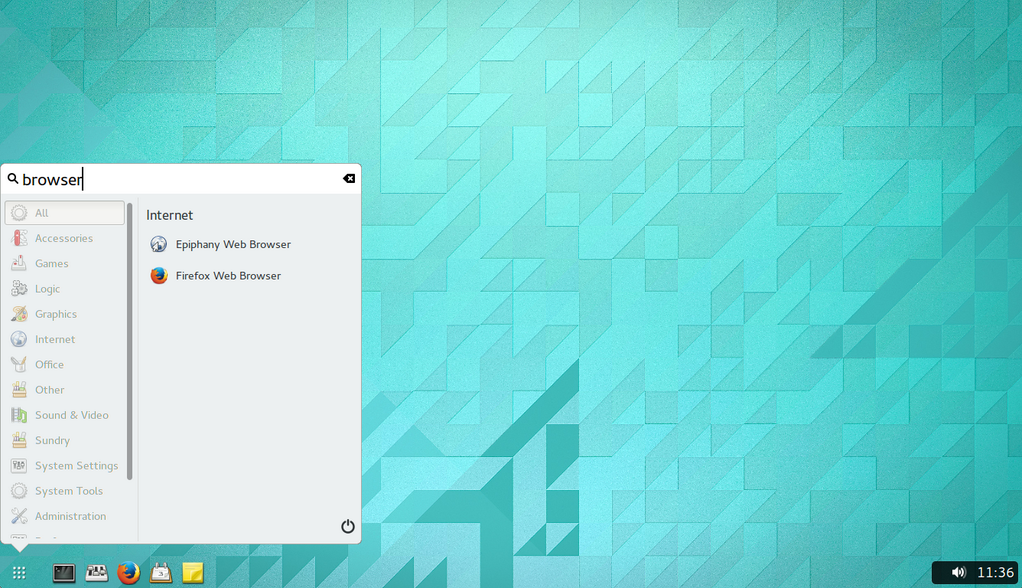
The bottom panel houses a menu (the logo can be changed, don’t worry), shortcuts to apps, and an app list. To the far right is the system tray, with a clock/calendar, notifications and indicators. You can add, remove or rearrange applets and panels by right-clicking on them.
More themes, applets and desklets (desktop widgets) can be browsed, downloaded and applied using the Settings utility.
Installing Cinnamon 2.2 also bags you a few extras:
  • Nemo — Forked version of Nautilus with additional features, UI options
  • Muffin — Forked version of GNOME’s Mutter window manager
  • Cinnamon Control Center — Forked version of GNOME Control Center 

Summary

Compared to the GNOME Flashback session (which offers a familiar desktop layout) Cinnamon does offer more in the way of customisation, theming and general personalisation. That stuff is important for some users who see visual restrictions as something best left to Windows and Mac OS X.
And while the DE won’t surprise you by going against long accepted conventions, it has enough on offer to still deliver a truly functional, dependable experience.
Are you going to take the Cinnamon challenge? Let us know how you get on!

How To Use Steam Music Player on Ubuntu Desktop

How To Use Steam Music Player on Ubuntu Desktop
steam-music
‘Music makes the people come together’ Madonna once sang. But can Steam’s new music player feature mix the bourgeoisie and the rebel as well?
If you’ve been living under a rock, ears pressed tight to a granite roof, word of Steam Music may have passed you by.  The feature isn’t entirely new. It’s been in testing in some form or another since earlier this year.
But in the latest stable update of the Steam client on Windows, Mac and Linux it is now available to all.  Why does a gaming client need to add a music player, you ask? To let you play your favourite music while gaming, of course.
Don’t worry: playing your music over in-game music is not as bad as it sounds (har har) on paper. Steam reduces/cancels out the game soundtrack in favour of your tunes, but keeps sound effects high in the mix so you can hear the plings, boops and blams all the same.

Using Steam Music Player

steam music bpm
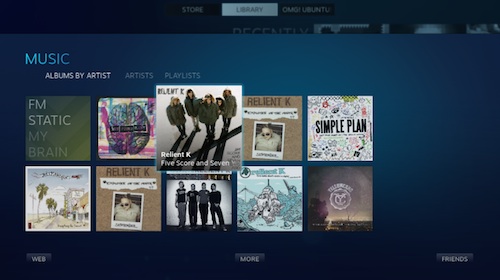
Music in Big Picture Mode
Steam Music Player is available to anyone running the latest version of the client. It’s a pretty simple addition: it lets you add, browse and play music from your computer.
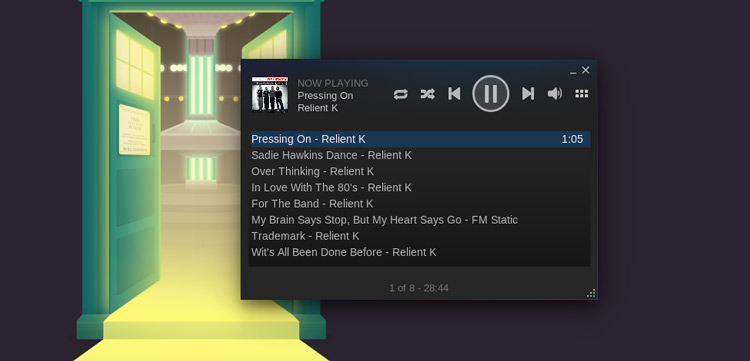
The player element itself is accessible on the desktop and when playing in Steam’s (awesome) Big Picture mode. In both instances, controlling playback is made dead simple.
As the feature is designed for playing music while gaming it is not pitching itself as a rival for Rhythmbox or successor to Spotify. In fact, there’s no store to purchase music from and no integration with online services like Rdio, Grooveshark, etc. or the desktop. Nope, your keyboard media keys won’t work with the player in Linux.
Valve say they “…plan to add more features so you can experience Steam music in new ways. We’re just getting started.”
Steam Music Key Features:
  • Plays MP3s only
  • Mixes with in-game soundtrack
  • Music controls available in game
  • Player can run on the desktop or in Big Picture mode
  • Playlist/queue based playback
It does not integrate with the Ubuntu Sound Menu and does not currently support keyboard media keys.

Using Steam Music on Ubuntu

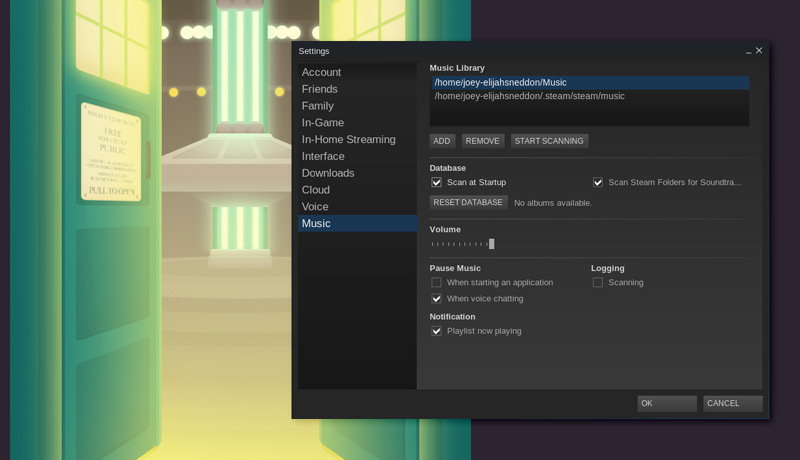
The first thing to do before you can play music is to add some. On Ubuntu, by default, Steam automatically adds two folders: the standard Music directory in Home, and its own Steam Music folder, where any downloadable soundtracks are stored.
Note: at present Steam Music only plays MP3s. If the bulk of your music is in a different file format (e.g., .aac, .m4a, etc.) it won’t be added and cannot be played.
To add an additional source or scan files in those already listed:
  • Head to View > Settings > Music.
  • Click ‘Add‘ to add a folder in a different location to the two listed entries
  • Hit ‘Start Scanning’ 
Tardis
This dialog is also where you can adjust other preferences, including a ‘scan at start’. If you routinely add new music and are prone to forgetting to manually initiate a scan, tick this one on. You can also choose whether to see notifications on track change, set the default volume levels, and adjust playback behaviour when opening an app or taking a voice chat.
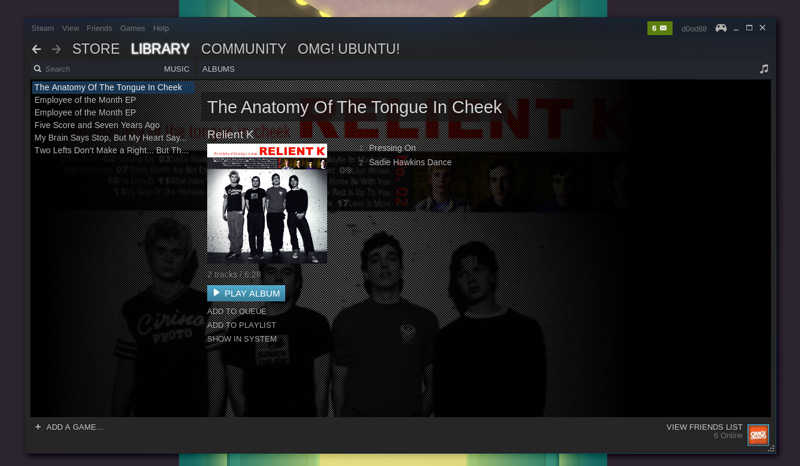
Once your music sources have been successfully added and scanned you are all set to browse through your entries from the Library > Music section of the main client.
browser
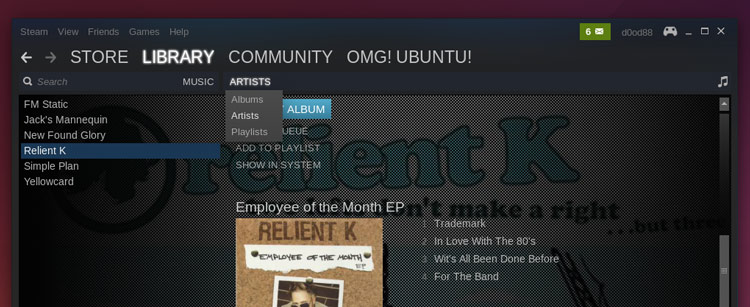
The Steam Music section groups music by album title by default. To browse by band name you need to click the ‘Albums’ header and then select ‘Artists’ from the drop down menu.
steam-selection
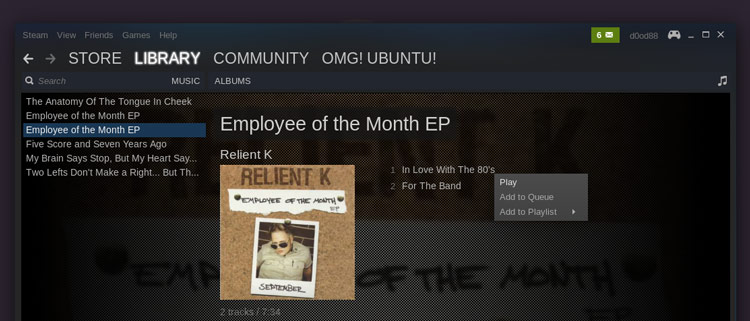
Steam Music works off of a ‘queue’ system. You can add music to the queue by double-clicking on a track in the browser or by right-clicking and selecting ‘Add to Queue’.
steam music queue
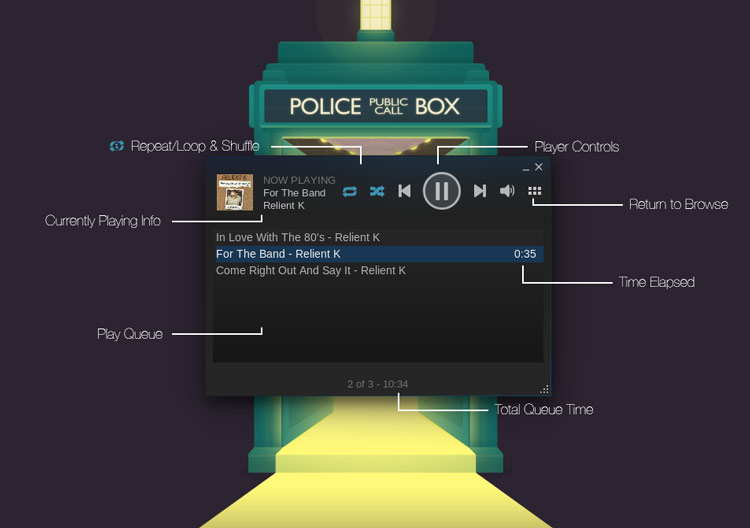
To launch the desktop player click the musical note emblem in the upper-right hand corner or through the View > Music Player menu.
steam-music

How To Sharing Files And Resources in Windows

How To Sharing Files And Resources in Windows
The objective for this lesson is to explain how to share your printer and external hard drives with others on the network.
We will start by teaching you how to share a printer with the Homegroup and then how to share it with the network. As you will see, the process is different and using the Homegroup makes things easier and faster.
Then we will discuss how to share external hard drives with others on the network as well as any partition from your Windows computer. As you will see, the process involves using Advanced Sharing and you will put the knowledge you gained in Lesson 7 to good use.
Last but not least we will talk a bit about how a good router can help you share a printer and an external hard drive with all the computers and devices that are part of your network.
But enough talk. Let’s get started!

How to Share Your Printer with the Homegroup

Sharing your local printer with the Homegroup is incredibly easy. In Windows 8.x, go to PC Settings and then to “Network > HomeGroup”. There you will find several switches for sharing with the Homegroup.
Find the one named “Printers” and set it to “On”.
clip_image002
Any printer that is connected to your Windows 8.x PC or device is now shared with others on the Homegroup.
In Windows 7, go to the Control Panel and then to “Network and Internet > Network and Sharing Center”. In the column on the left, click “HomeGroup”.
clip_image004
In the HomeGroup window check the box for “Printers” and press “Save changes”.
clip_image006
Any printer that is connected to your Windows 7 PC is now shared with others on the Homegroup.
If you need a refresher about the Homegroup and how it can be used for network sharing, don’t hesitate to read Lesson 5.

How to Share Your Printer with the Network

If you have a network with operating systems other than Windows 7 and Windows 8.x, you may want to share your local printer using a different method, so that the printer can be discovered by all the computers in the network.
First, open the Control Panel and then go to “Hardware and Sound > Devices and Printers”. Here you will find all the external devices that are connected to your Windows PC or device. Things like webcams, keyboards, external hard drives, printers, etc.
clip_image008
Your local printer is displayed in the “Printers” section alongside virtual printers installed by the software on your PC or device.
Right-click or press and hold the printer you want to share with the network, and select “Printing preferences”.
clip_image009
The “Printer Properties” window is shown. Here you can configure all the important aspects of your printer and you can also share it with the network.
clip_image010
Since we are interested in sharing it with others on the network, go to the “Sharing” tab. You are informed that the printer will not be available when your computer sleeps or it is shut down. Also, if you are using password protected sharing (see Lesson 3 for a refresher), you are informed that only users on your network with a username and password for this computer can print to it.
To share your printer, check the box that says “Share this printer”.
clip_image011
The printer will be shared using its default product name and version. You can customize its share name by typing something else. You can also set whether you would like to render print jobs on client computers.
If this setting is enabled, all the documents that will be printed are rendered on the computers that order the printing process. When this setting is disabled, the documents are rendered on the computer to which the printer is attached.
We recommend enabling this setting so that system performance is not impacted on the computer to which the printer is attached, every time something gets printed.
clip_image012
To share the printer with the network, press “OK”.
Other computers can install the printer you are sharing as a network printer and use it when they need to print something.

The Trouble with Sharing Local Printers or Why You Should Use Wireless Printers

Back in the Windows XP era, local printers were the norm in the consumer space. Only businesses with lots of employees had network printers to which entire offices could print to.
In recent years, wireless printers have become very affordable and commonplace. You can find lots of models at many price points in any decent computer store. We recommend you to purchase and install a wireless printer in your home network. This will help avoid lots of annoyances that are common when using a local printer that is shared with the network.
  • Computers on the network can view and use the shared printer only when both the printer and the computer that it is attached to are turned on.
  • Installing a shared network printer involves more steps and it is more error prone than installing a modern wireless printer. You can encounter problems with conflicting network sharing settings, permissions and so on.
  • The printing process is faster because it doesn’t involve sending data to another computer before getting it printed.
  • Printing from local printers can be done only from computers that are part of the network but not from tablets or smartphones.
To make your home networking experience as pleasant as possible, buy a wireless printer that you can afford and which has driver support for all the operating systems in your network. Install it on each PC, Mac, or other device individually and then everyone can print without bothering others and using their computers or devices. You will also have one less cable in your network.
If for some reason you do not want to purchase a wireless printer or you simply cannot afford one, you can connect your local printer to your router, if your router has a USB port available and it can work as a printing server for your network. Setting things up differs from router to router so we recommend that you consult your router’s manual to learn how to set it up as a network print server.
More expensive printers also have an Ethernet port and you can connect them directly to your router with a network cable and without setting up the router to act as a print server. Setting them up on each PC in your network is just as easy as setting up wireless printers.

How to Stop Sharing the Printer with the Homegroup

The steps involved when you want to stop sharing your printer with the Homegroup are the same as when you start sharing it.
In Windows 8.x, go to PC Settings and then to “Network > HomeGroup.” Set the switch for “Printers” to “Off”.
clip_image014
All the local printers attached to your PC or device are no longer shared with the Homegroup.
In Windows 7, go to the Control Panel and then to “Network and Internet > Network and Sharing Center”. In the “Network and Sharing Center” go to the column on the left and click “HomeGroup”.
In the “HomeGroup” window clear the box for “Printers” and press “Save changes”.
clip_image016
All the local printers attached to your PC are no longer shared with the Homegroup.

How to Upgrade Ubuntu 14.04 LTS to Ubuntu 14.10

How to Upgrade Ubuntu 14.04 LTS to Ubuntu 14.10
software-and-updates
Wondering how to upgrade Ubuntu 14.04 LTS to Ubuntu 14.10? Well, we’re here to help.
Canonical won’t be nudging users of 14.04 LTS to upgrade to the interim release of 14.10.
But that doesn’t mean that you can’t upgrade your rock solid Trusty Tahr desktop to the (slightly underwhelming) Utopic Unicorn. 
To get notified of new non-LTS Ubuntu releases you need to “opt-in” via the Software & Updates tool. This is straightforward.
  • Open ‘Software & Updates’
  • Select the ‘Updates’ tab
  • Locate section titled ‘Notify me of a new Ubuntu version’
  • In the dropdown menu switch from ‘For long-term support versions‘ to ‘For any new version’
After switching you’ll want to run a quick update.
Now you’re all set! The moment Canonical send out the “upgrade” prompt to desktop users (often delayed compared to general ISO availability) you’ll be able to upgrade to 14.10 through the Software Updater tool.

How to Download YouTube Videos in Ubuntu With ClipGrab

How to Download YouTube Videos in Ubuntu With ClipGrab
clipgrab youtube-downloader-ubuntu


I often see users ask how to download YouTube videos in Ubuntu, but the answers given out often vary widely in their complexity. 
From command-line scripts to web-based convertors and integrated all-in-one desktop tools like MiniTube. Heck, even VLC can do it with a little know-how. Suffice to say, there are number of ways to download YouTube videos in Ubuntu and other Linux distributions.
As a fan of the “keep is simple” approach I find that the best app for this job is the one I see don’t see recommended enough. It’s called ClipGrab and is fast, free and easy to use.
In this post I’ll show you what it can do and how you can install it in Ubuntu. Before we dive in be sure to read over the ClipGrab privacy policy before installing.

Downloading YouTube Videos in Ubuntu The Easy Way

Most of us waste spend countless hours over on sites like YouTube and Vimeo gawping at cat videos, giggling at the latest vlogs by “web-lebrities” and learning new tricks through handy how-to’s. Sometimes you may need to save a video for offline viewing, backup purposes or another reason.
How?
ClipGrab is a free cross-platform YouTube downloader that also supports other services, including Vimeo and DailyMotion. It offers a number of useful features, including options for quality and conversion, letting you download videos in a number of formats, like .mp4, .mp3, and .ogv, as part of the download process.
It couldn’t be easier to use:
  • Find a video on a supported service (or search in-app)
  • Paste the URL in to ClipGrab
  • Select a file format and set the quality
  • Download
clipgrab-quality-and-format-settings

Key Clipgrab Features:

  • Search for videos in-app
  • Paste URL of clips you wish to download
  • Download multiple clips at the same time
  • Choose download quality, from 260p to 720p
  • Convert downloads to .mp3, .mp4, .flv, .ogg, .ogv or other file formats
  • Add meta-data to videos saved as .mp3
Dive into ‘Settings’ for more options, including the ability to specify the default folder, enabling metadata embeds to saved downloads, configuring proxy support, enabling a system tray icon and a few other tweaks.
Remember: only download videos to which you own the rights to or have permission for (you’re free to download ours for offline viewing). Downloading copyrighted material without permission could land you in hot water — and not the sort of hot water that a rubber duck floats on!

How to Install Clipgrab in Ubuntu 14.04 LTS

There a several ways to install Clipgrab 4.3.8 in Ubuntu. 
If you’re on a 64-bit build of Ubuntu 14.10 you can grab a precompiled binary from the official project website. Once extracted, this can be run with a double click with no install required.
The Clipgrab-team PPA provides the latest builds for Ubuntu 12.04 LTS and Ubuntu 14.04 LTS users only. To install from this repo you will need to run the following commands in a Terminal:
sudo add-apt-repository ppa:clipgrab-team/ppa

sudo apt-get update && sudo apt-get install clipgrab
Alternative, if PPAs aren’t your thing, you can nab the relevant  .deb installer from the PPA directly from the links below.